
Manage it
Fabric Console is the administrator's screen. The menu on the left is the whole map; what you see depends on your role.
| Menu | What it is for |
|---|---|
| Overview | Connection, version and sign-in mode at a glance |
| Health | Is Apelora working, and if not, which part and why |
| Servers | Members, machines and join tokens, cluster settings, certificates, upgrades, preflight |
| Applications | Your applications, with Start, Restart, Shut down and Stop |
| Instances | Every container and virtual machine, with logs and terminals |
| Operations | What the worker is doing and has done |
| Networks, Storage | Application networks; volumes, snapshots and backups |
| Alerts | What needs attention, and where it is sent |
| Audit | Who did what |
| Identity & Access | People, groups, roles, sign-in, tokens, approvals |
| Administration | API tokens, and backups of Apelora's own database |
Health
Start here when something looks wrong. It reads again every few seconds and shows each server and each part of Apelora (database, worker, Incus) with its status and the reason.
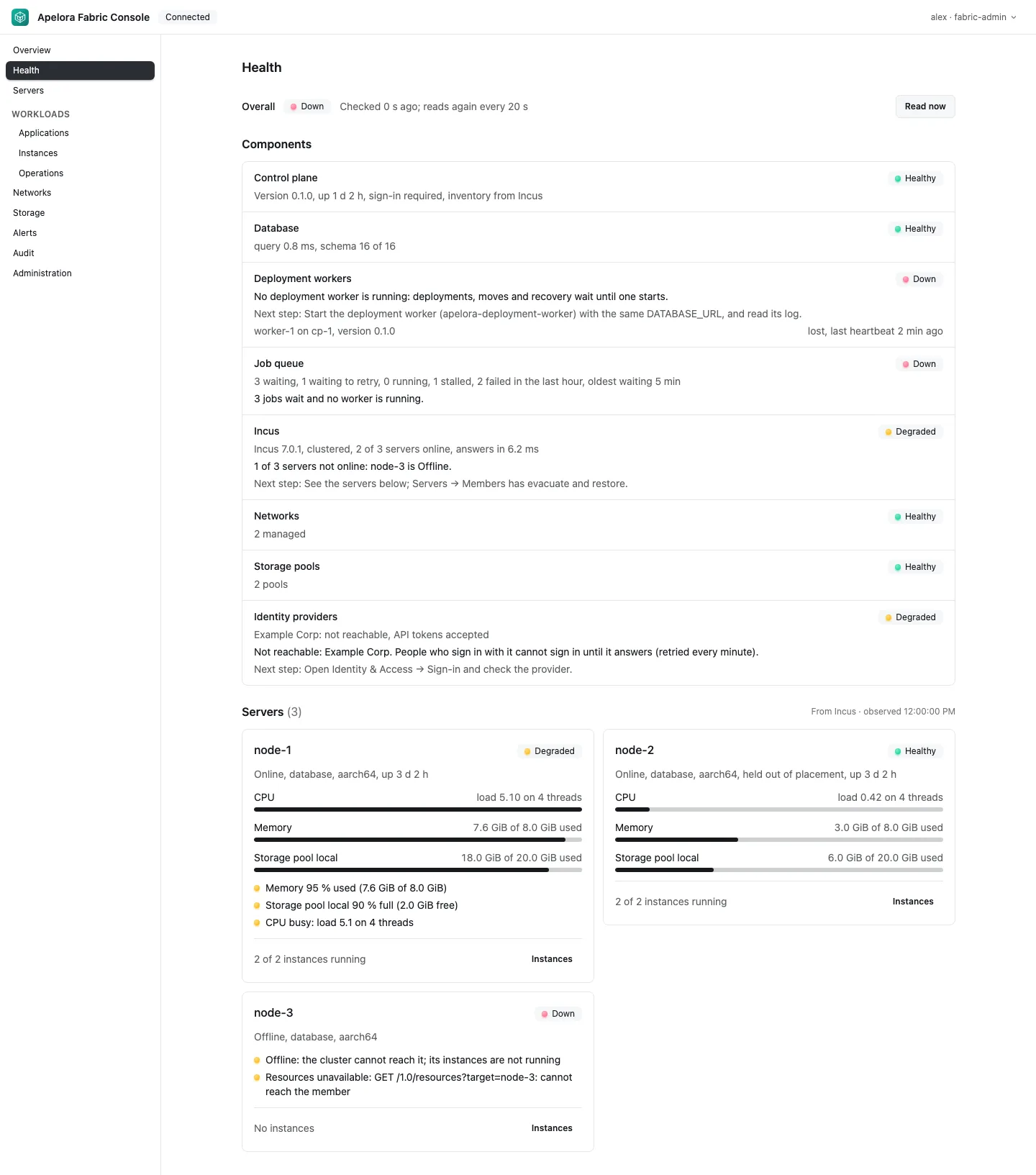
Reading it: the Health page.
Servers
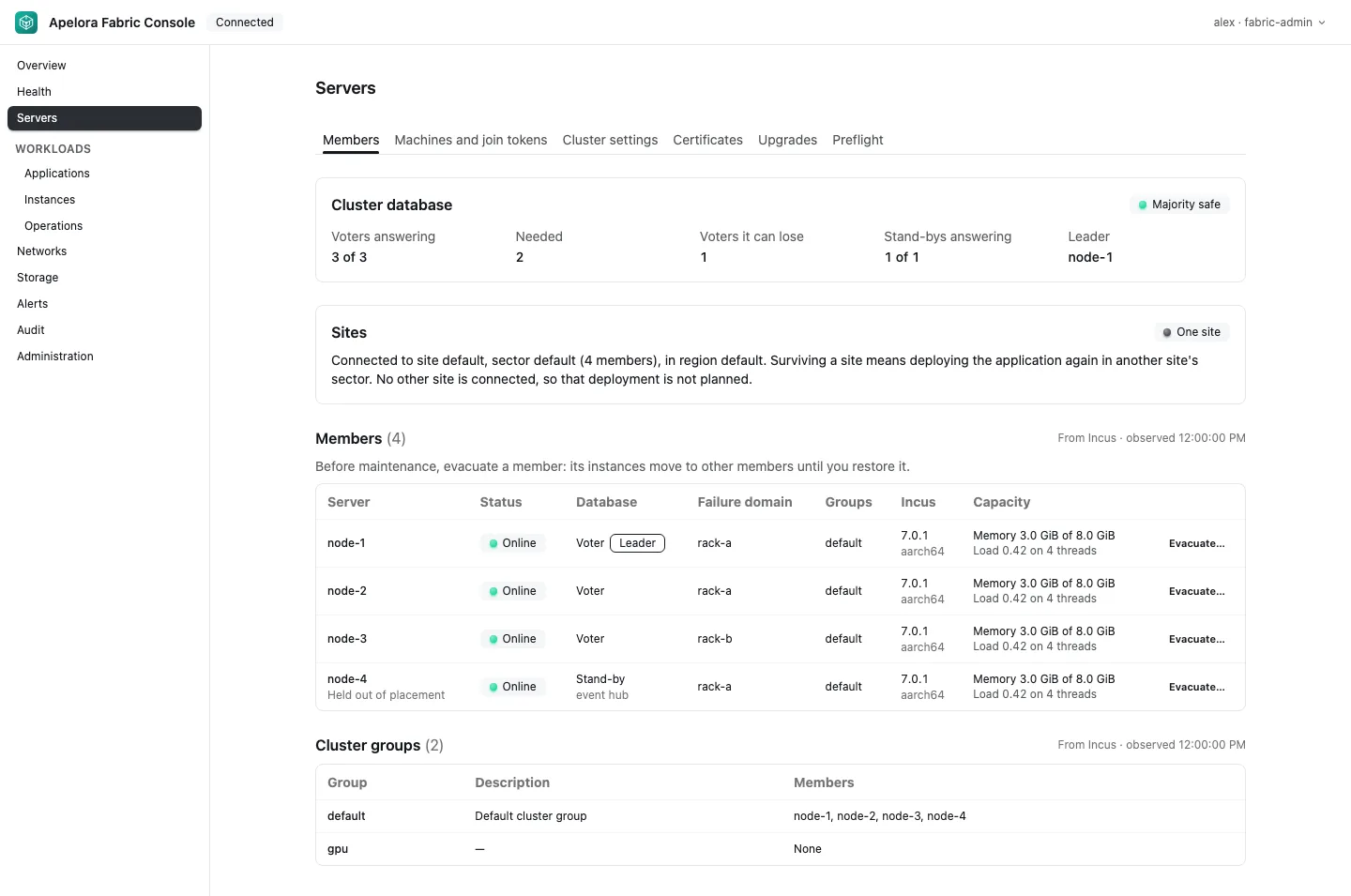
- Members: quorum, each server's state and capacity. Evacuate… moves a server's instances away before maintenance; restore brings them back. Maintenance.
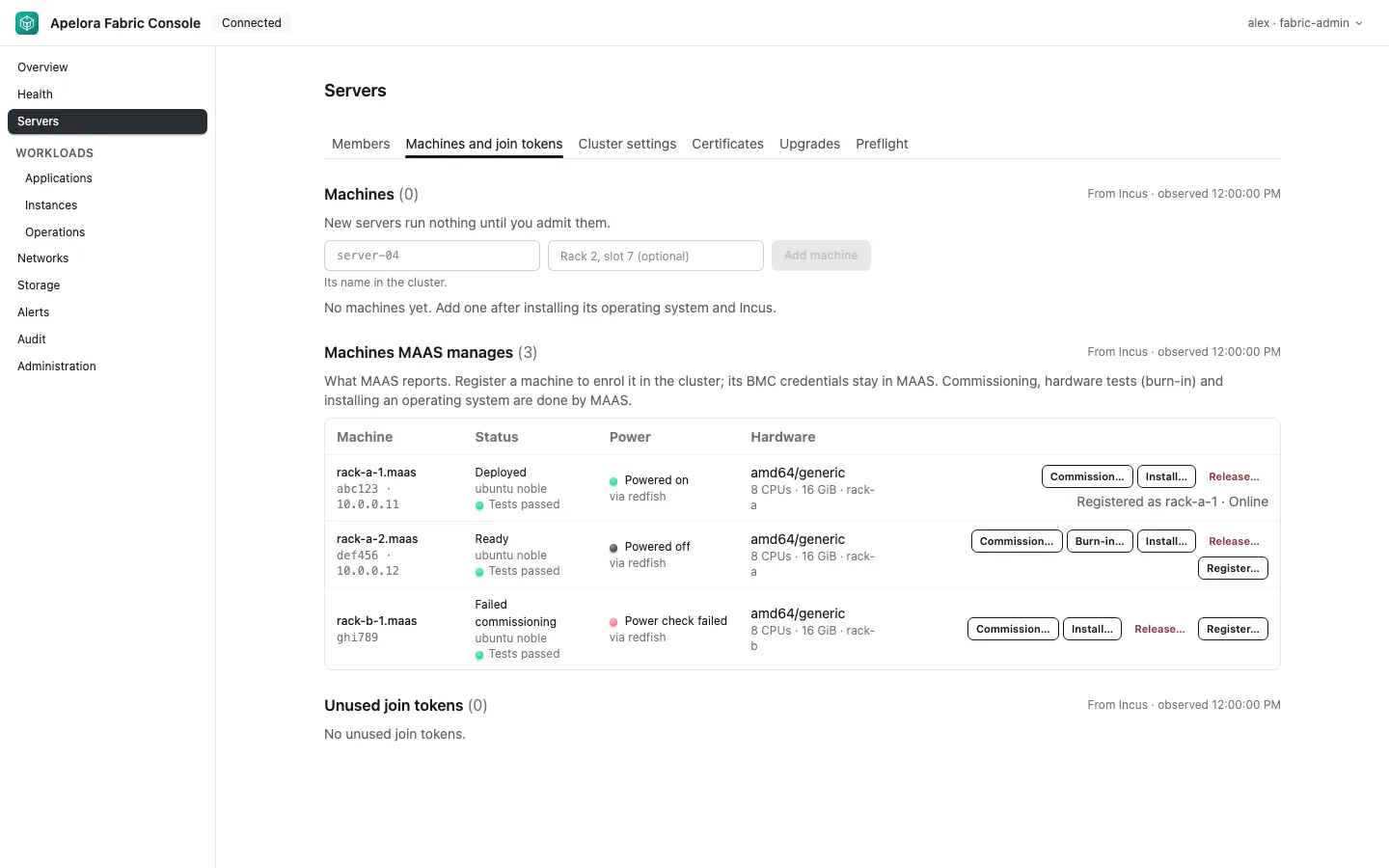
- Machines and join tokens: add a server: register, approve, enrol, admit. Add a server. With MAAS configured, the machines it manages are listed too.
- Cluster settings, Certificates, Upgrades, Preflight: reviewed changes, certificate rotation, a rolling-upgrade guide, and checks that tell you what is not yet right.
Applications: start, shut down, stop, migrate
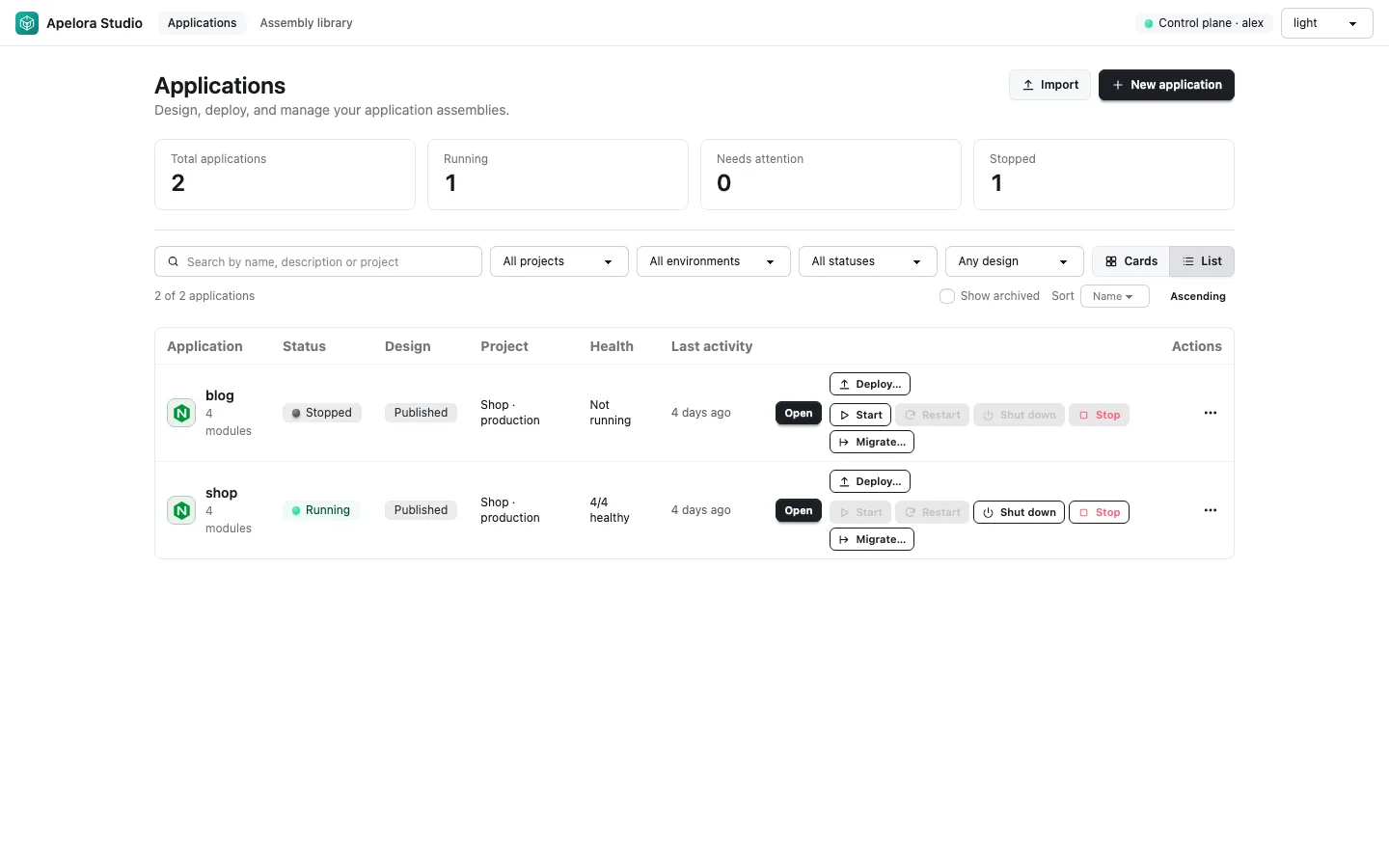
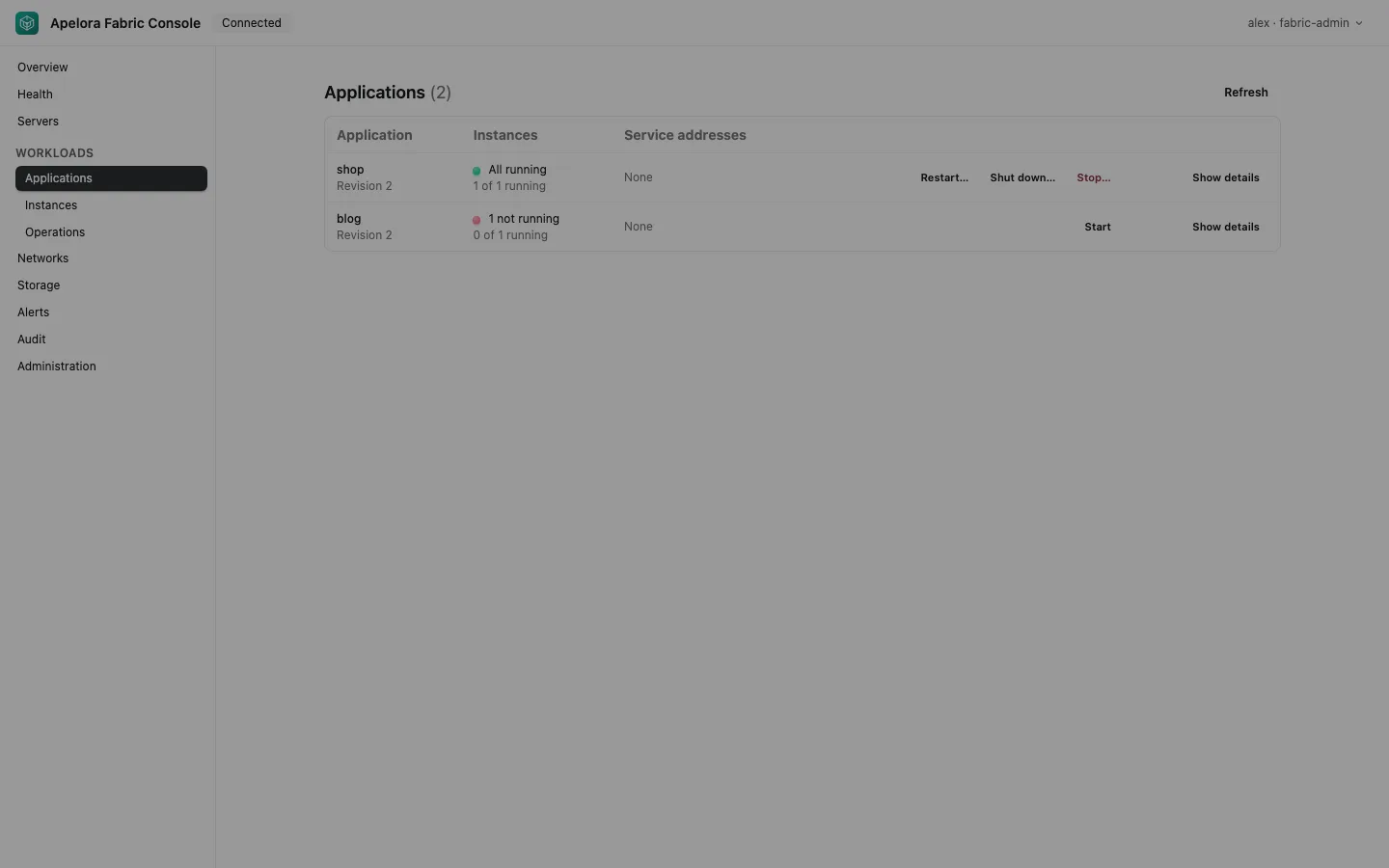
Applications are operated from Studio's Applications list and, for the basics, from the Console's Applications page. Each application offers the verbs the server allows right now, and says why when one is greyed out.
| Verb | What it does |
|---|---|
| Start | Starts every instance, providers first |
| Restart | Stops and starts again, in dependency order; offered when something is wrong |
| Shut down | Asks each instance to shut down and gives it time, what depends on a module first. Data is kept |
| Stop | Powers every instance off at once, without waiting. Anything held only in memory is lost; use it when Shut down does not work |
| Migrate… | Moves every instance to one server you choose, after a dry run |
Shut down, Stop and Restart ask first; when clients of a single-instance or stateful module would lose service, the same dialog says so and asks again.
Migrate first shows, per instance, whether it keeps running while it moves, what is copied, and what blocks it; what has to stop needs a tick. All instances end up on the one server, so a module's replicas then share it. Try a migration on a test application before you rely on it for virtual machines.
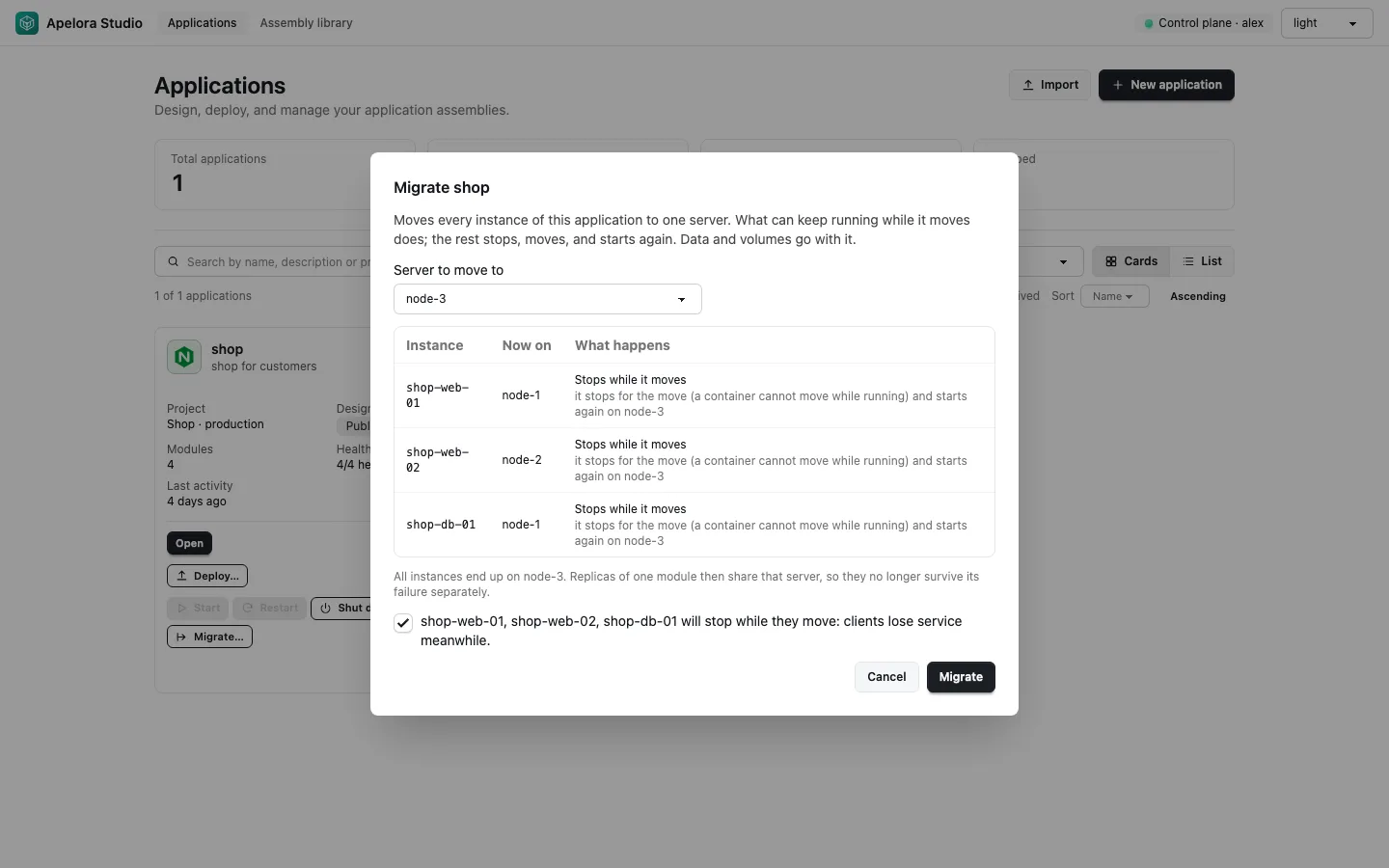
Import creates an application from a design file; Export JSON in a row's menu saves its design. The Console's page is the administrator's view:
Operations
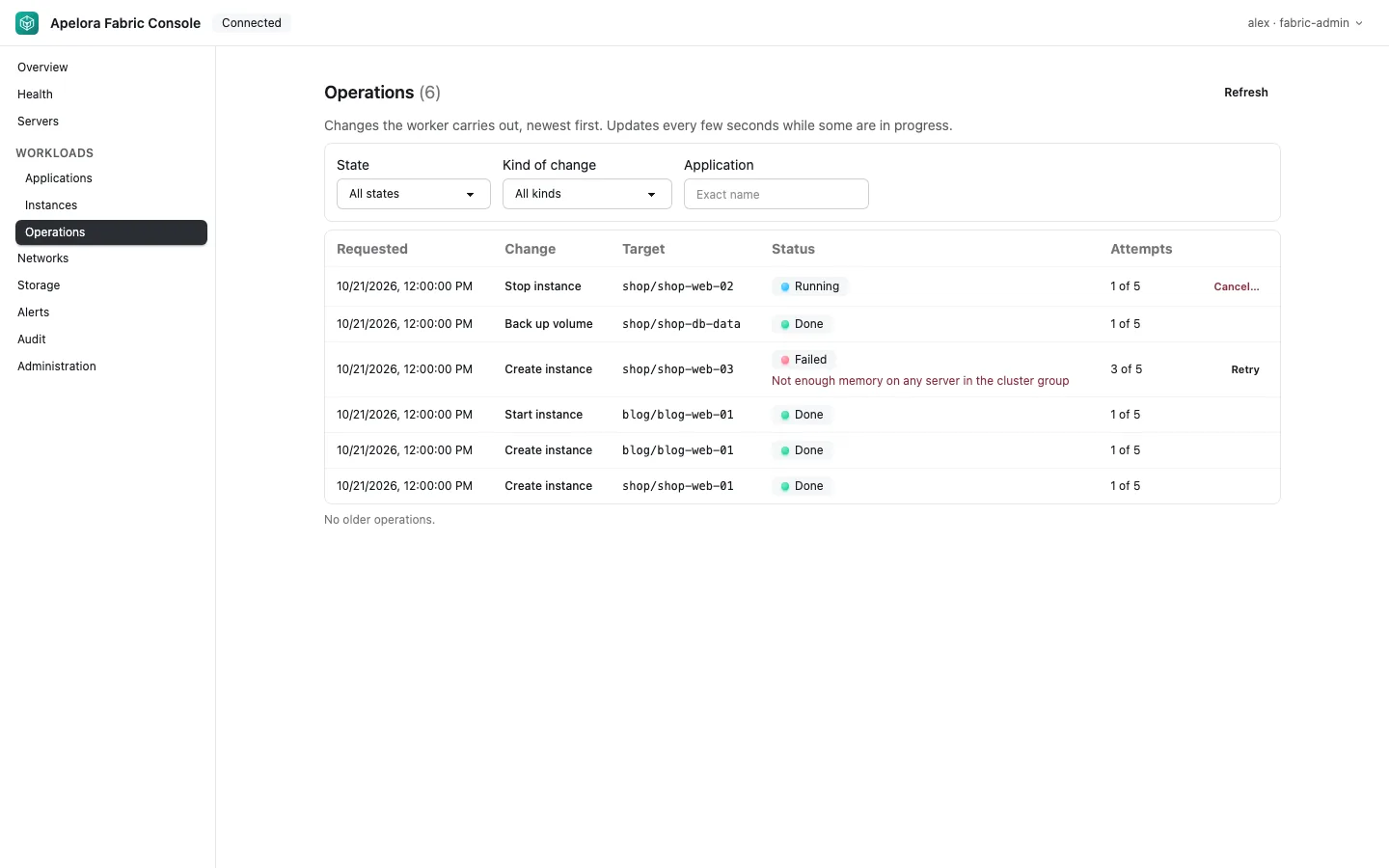
Every change is a job. Operations lists them newest first, with filters for state, kind and application. A failed job can be retried and a waiting or running one cancelled, each only if you may; each attempt is recorded. Open a row for its attempts and the Incus operations behind it.
Logs, retries and the audit trail together: troubleshooting.
Instances, networks, storage, alerts
- Instances: each instance's detail, its log files and console log, and a terminal into a running module (approval may be needed in production). Terminal sessions.
- Networks, Storage: what Apelora created; volumes that outlive their instance, with snapshots and backups. Volumes.
- Alerts: fifteen built-in rules with signed webhooks. Alerts.
Audit
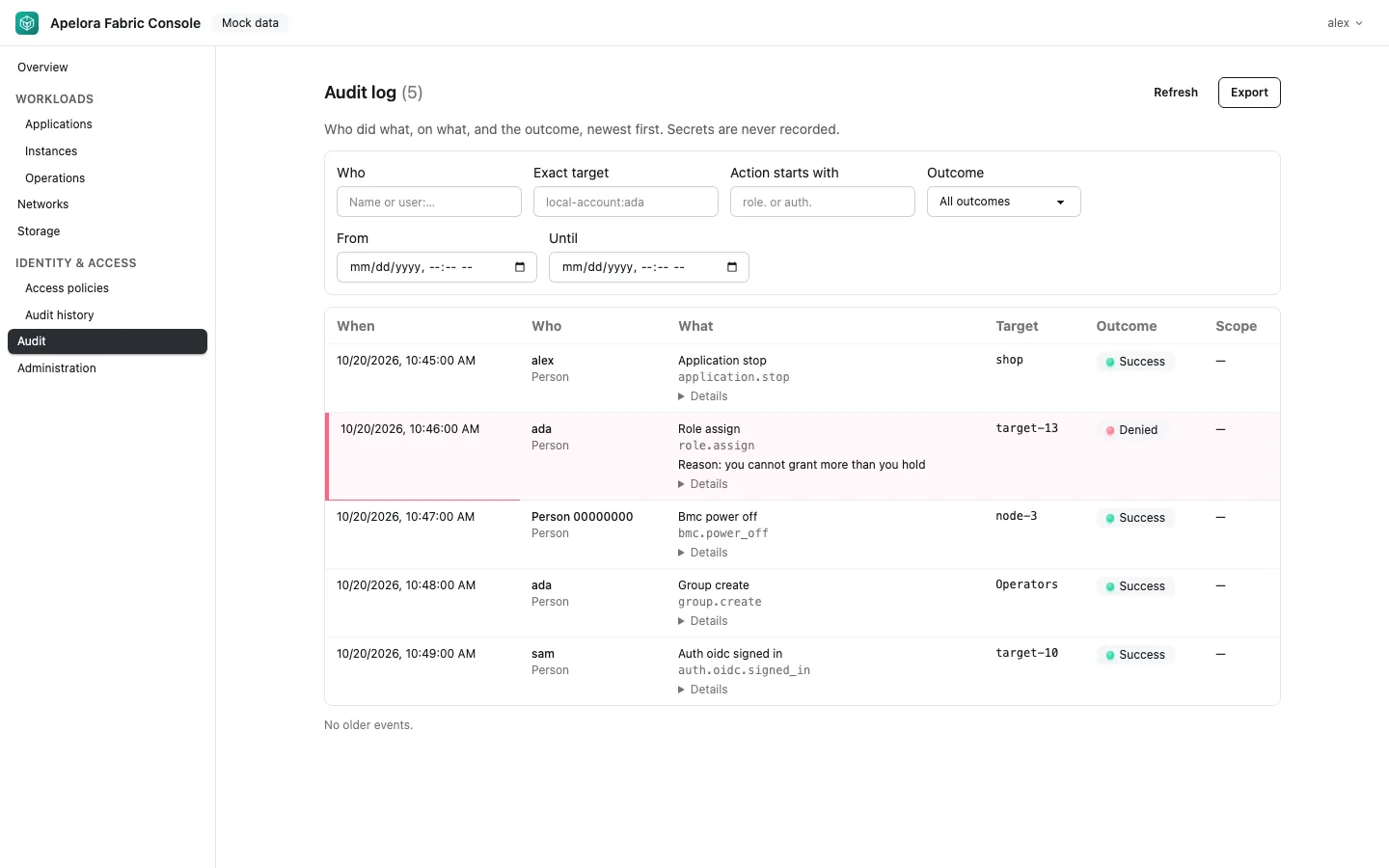
Every change is recorded with who, what and the outcome, including refusals. Filter by person, action, target, outcome and time; the filters stay in the address, so a link shares a view. Export as CSV or JSON lines.
Roles and sign-in
Roles apply at organisation, project and application scope, and a token can never grant more than its creator holds. Access, roles and security, identity and authorization.
Next: when something goes wrong.