
Deploy it
Deploying is a review, then a decision. Nothing changes on your servers until you press the last button. It is done from the Applications list, not from the canvas: you design on the canvas, then leave it.
Before you deploy
- The control plane and the worker are running, and the Studio is connected: choose the chip This browser · not connected in the header and sign in. The chip then names the control plane.
- You hold the deploy permission, and the project you want is on the allow-list (
APELORA_DEPLOY_PROJECTS). - The design is published: in the application's designer choose Publish version…. A draft cannot be deployed, so the Deploy… button says so until a version exists.
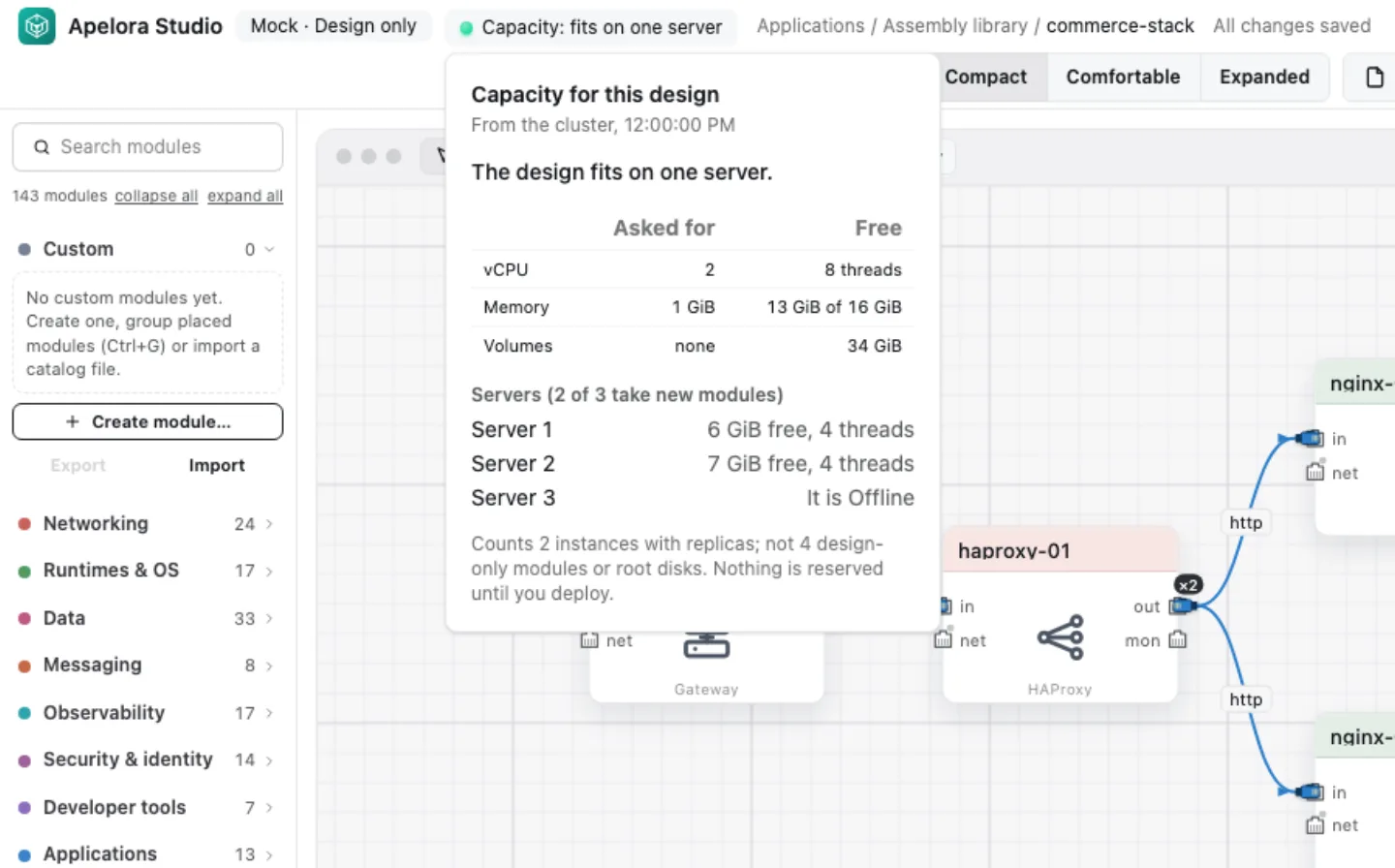
- The capacity chip reads fits. Choosing it shows what the design asks for next to what is free on each server:
1. Open Deploy from the list
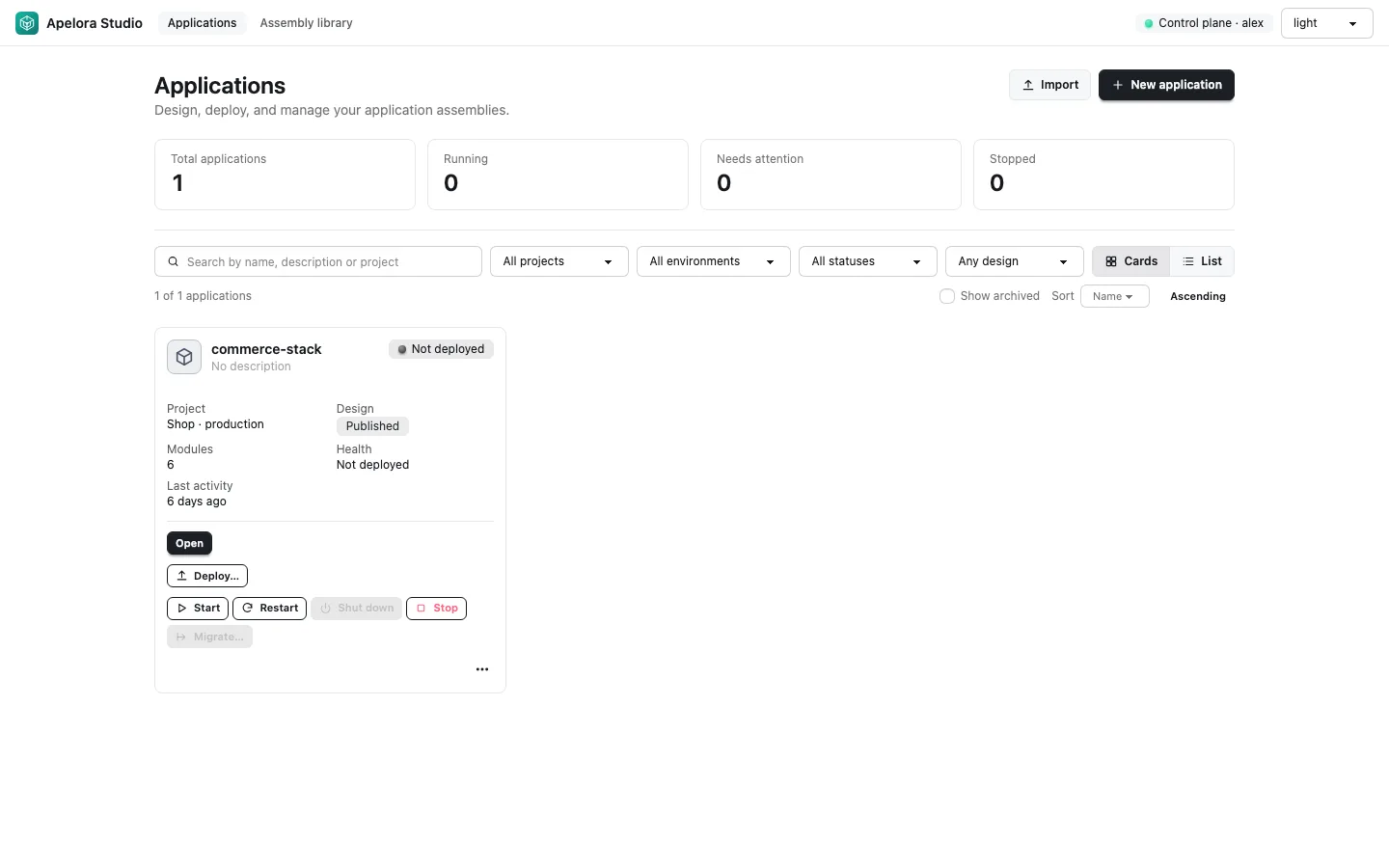
Leave the canvas (the Applications link in the header). Each application on the list has Deploy… beside its lifecycle buttons.
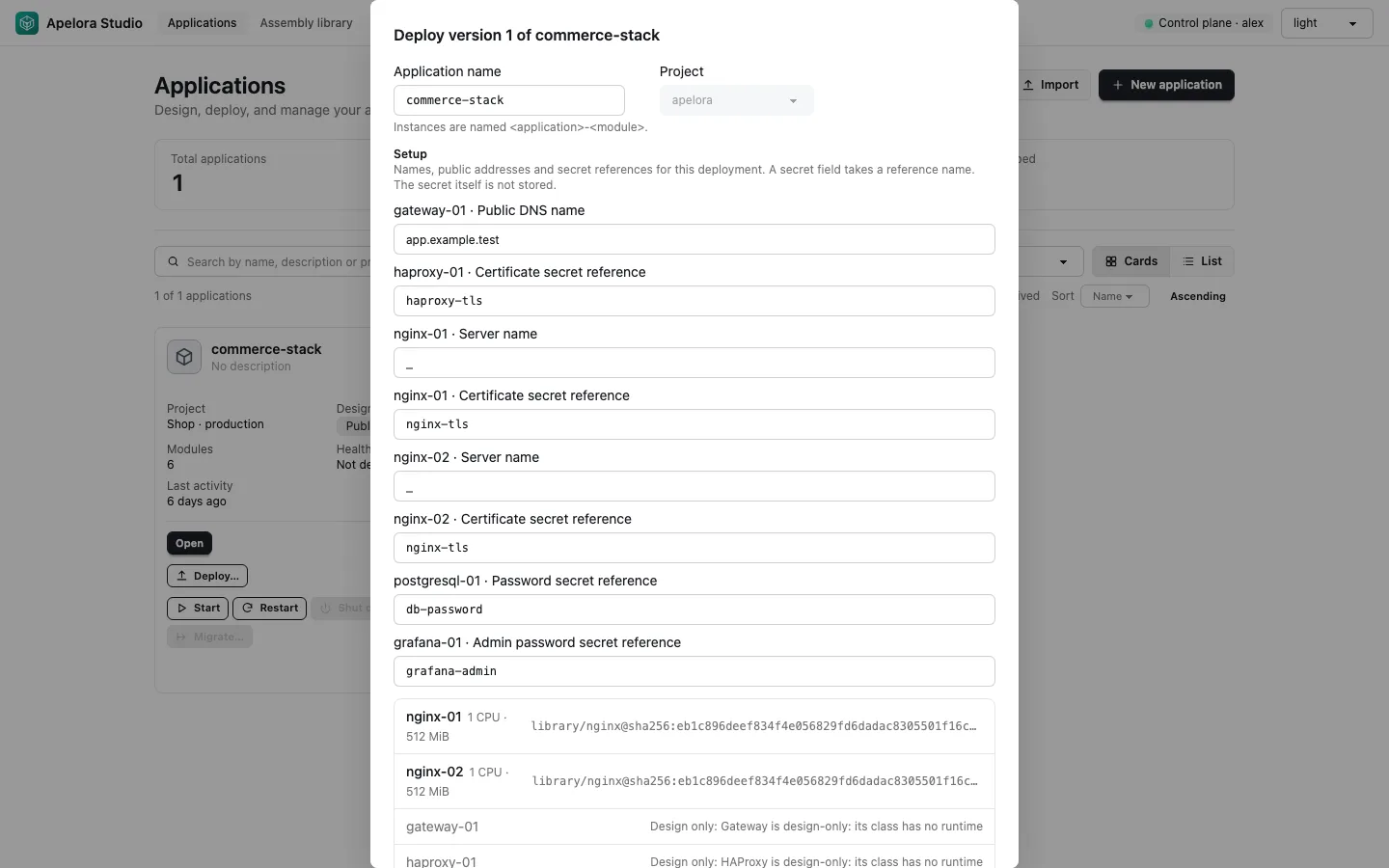
Choose Deploy…, pick the version, and choose Review deployment. The dialog names the application and its project, and lists which modules will deploy and which are design only.
2. Read the plan
Preview changes asks the control plane what deploying would do against what exists now. Each row is a module, the instance it becomes, and a change: create, keep, resize or conflict.
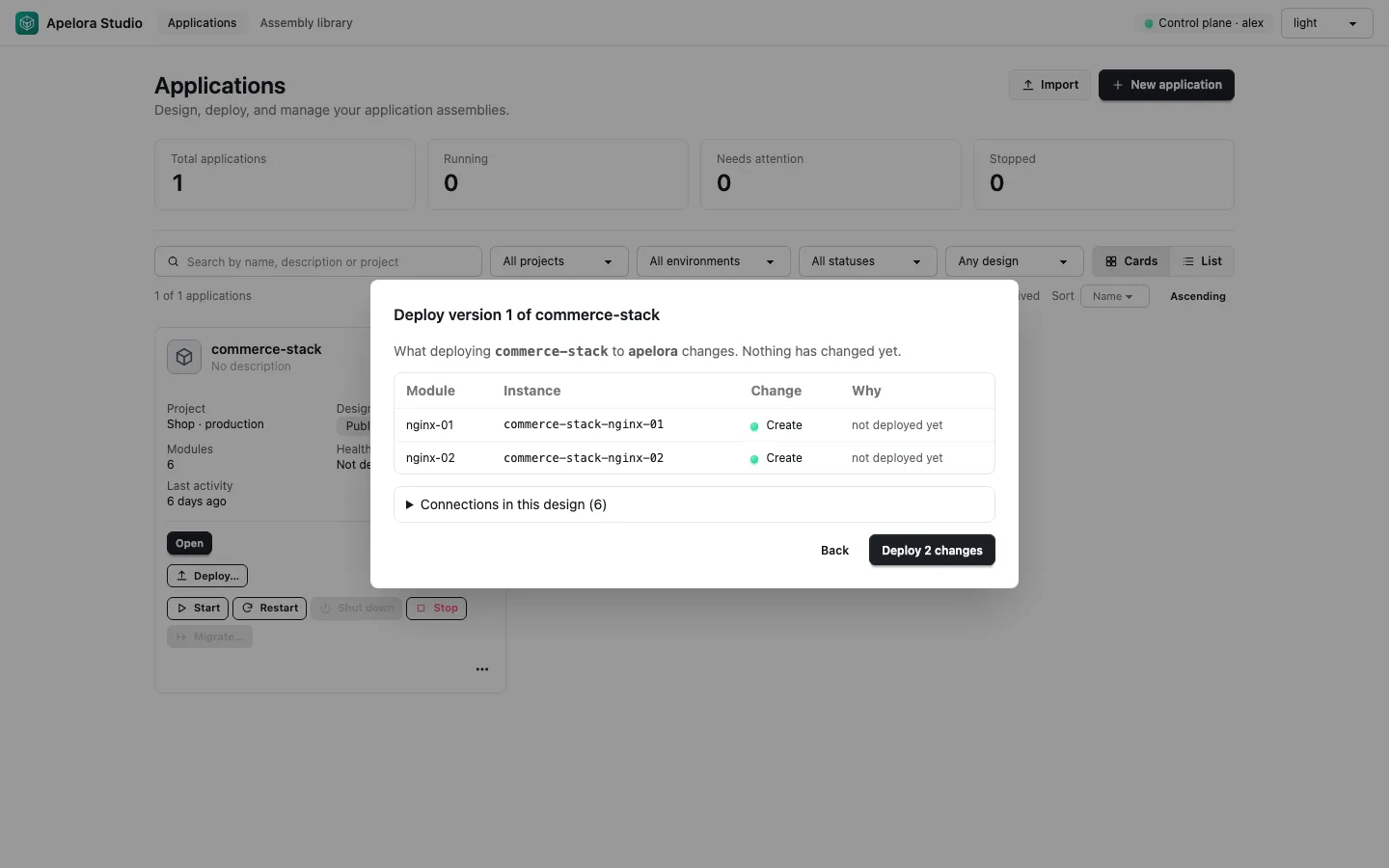
Read three things:
- Conflicts block the deploy. For instance, an instance with that name exists and Apelora did not create it. Nothing is sent until you fix it.
- Warnings such as nginx-02 runs as one instance point at single points of failure.
- Connections in this design lists the network rules your cables become: each connection becomes an allow rule, and everything else between the application's instances is rejected. Modules are told their providers' addresses.
3. Deploy
Deploy N changes queues one job per change under an immutable record of exactly what you approved. Repeating the request never creates duplicates. The dialog follows the jobs until they finish.
4. Watch it come up
On the list, the application's status follows the cluster: Starting, Running, Degraded. Open the application and its Designer tab to see each module on the canvas with its live state; the header says Live · 2 running:
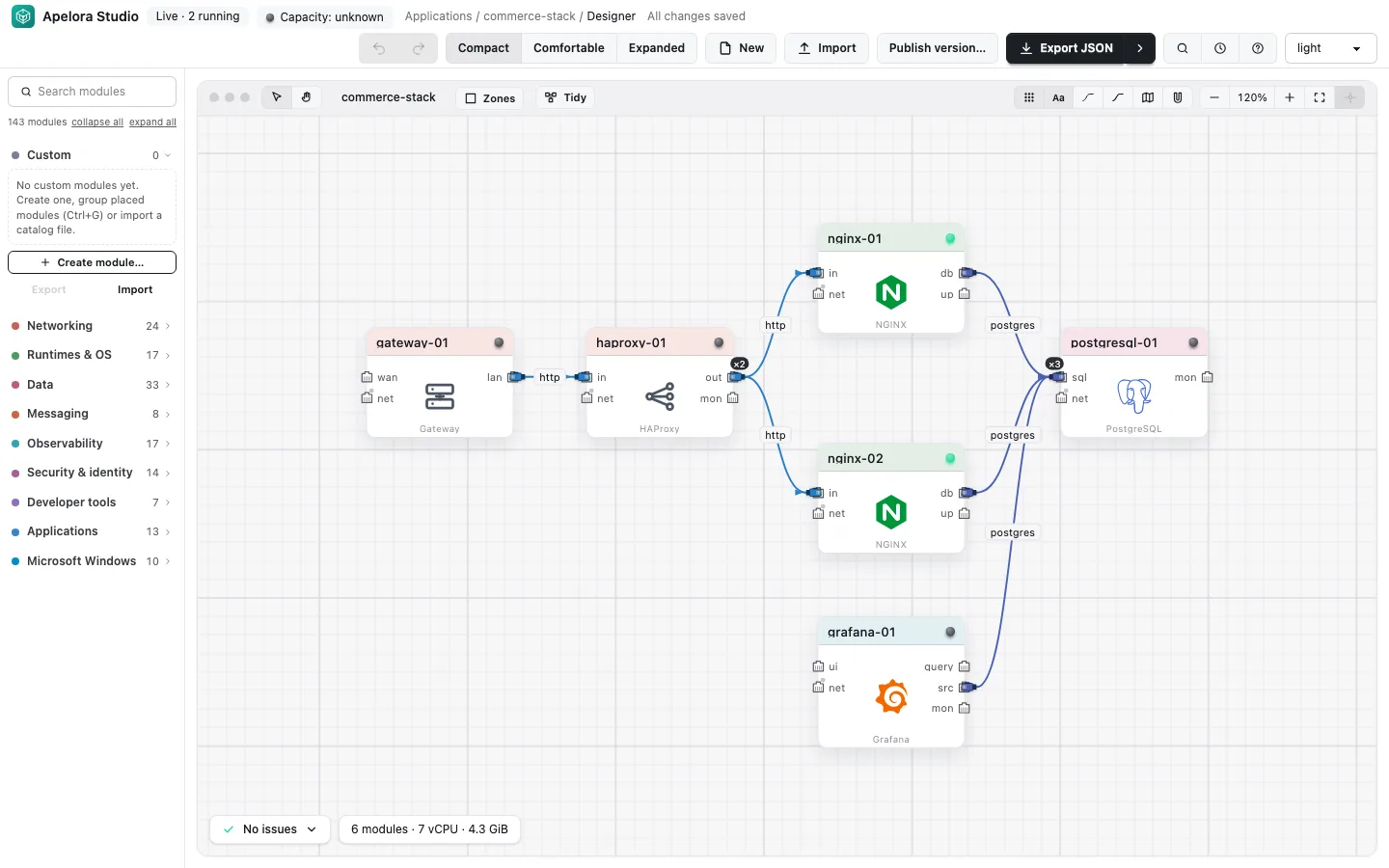
A module shows Running, Degraded (some replicas down), Unhealthy (running but failing its port check) or nothing yet. Hover or focus a module's dot for each replica, the server it runs on and its service address.
If it does not work
| You see | Likely cause | Where to look |
|---|---|---|
| Deploy… is greyed out | Not connected, nothing published yet, or the application is archived; its tooltip says which | Sign in, then publish from the designer |
| Design only for every module | None of them has a runtime yet | Module catalog |
| A conflict row | The name is taken by something Apelora did not create | Rename, or remove it in Incus |
| The deploy dialog says the control plane is unreachable | The API is down | The control plane or the worker is down |
| Jobs stay waiting | The worker is not running | Console → Operations |
| The deploy identity cannot see its project | The project or the certificate's restriction is wrong | Deploy identity |
| Not enough memory… on a create job | The cluster is full | Capacity chip; add a server |
Next: manage it.