
Signing in to the Fabric Console and the Studio
This page shows how people sign in to Apelora and what the messages on the sign-in page mean. It also shows administrators how to set up sign-in with the organisation's identity provider, local accounts or a directory. Design and security details are in Identity and authorization, section 3.
The providers and addresses in the screenshots are examples.
Which way applies to you
| The control plane runs… | Fabric Console | Studio |
|---|---|---|
| without a database (development mode) | No sign-in; the Overview shows Authentication: Disabled (development only) | Connect with any text as the token (nothing is checked) |
| with a database (normal) | Sign-in page: your organisation's identity provider, a username and password (a local account or a directory), or an API token | Connect to a control plane: your identity provider, a username and password (a local account or a directory), or an access token |
1. Development mode: no sign-in
When the control plane starts without a database, authentication is off and it only listens on the loopback address. It logs DATABASE_URL is not set: authentication is DISABLED (development only, loopback).
Inside this repository, .cargo/config.toml sets DATABASE_URL to the local development database for every cargo command, so a plain cargo run turns authentication on. For development mode, set it to empty:
DATABASE_URL= cargo run -p apelora-control-plane   # API at http://127.0.0.1:8080, mock data
npm run dev:console                                # Fabric Console at http://127.0.0.1:5174
The Console opens without a sign-in page. Never use this mode on a shared machine or network; the control plane refuses to start without a database on any address other than loopback.
2. Signing in with an API token
An API token is a long random secret that an administrator creates on the server. It is the way in until an identity provider is set up, and it stays useful for a first administrator.
Create one (shown once; copy it straight into the sign-in page):
DATABASE_URL=… cargo run -p apelora-control-plane -- token create --name me --role fabric-admin- Roles:
fabric-admin,operator,studio-designer,auditor. Afabric-admintoken acts as a platform super admin, including Identity & Access. - Every token expires:
--expires-in-days <d>sets 1–365 days (90 when left out;--expires-daysis still accepted).token listandtoken revoke <id>manage tokens. - Through the API or the Console, a token's role may only carry what its creator holds, and a
fabric-admintoken needs another person's approval (token.create_admin); the command line on the server is the way to make the first one. - With the local development database (
docker compose -f infra/dev/compose.yaml up -d),.cargo/config.tomlalready suppliesDATABASE_URL.
In the Console, paste the token into API token and choose Sign in. If an identity provider is set up, choose Use an API token instead first. The token is kept only for this browser tab (session storage): closing the tab signs you out, and a new tab asks again.
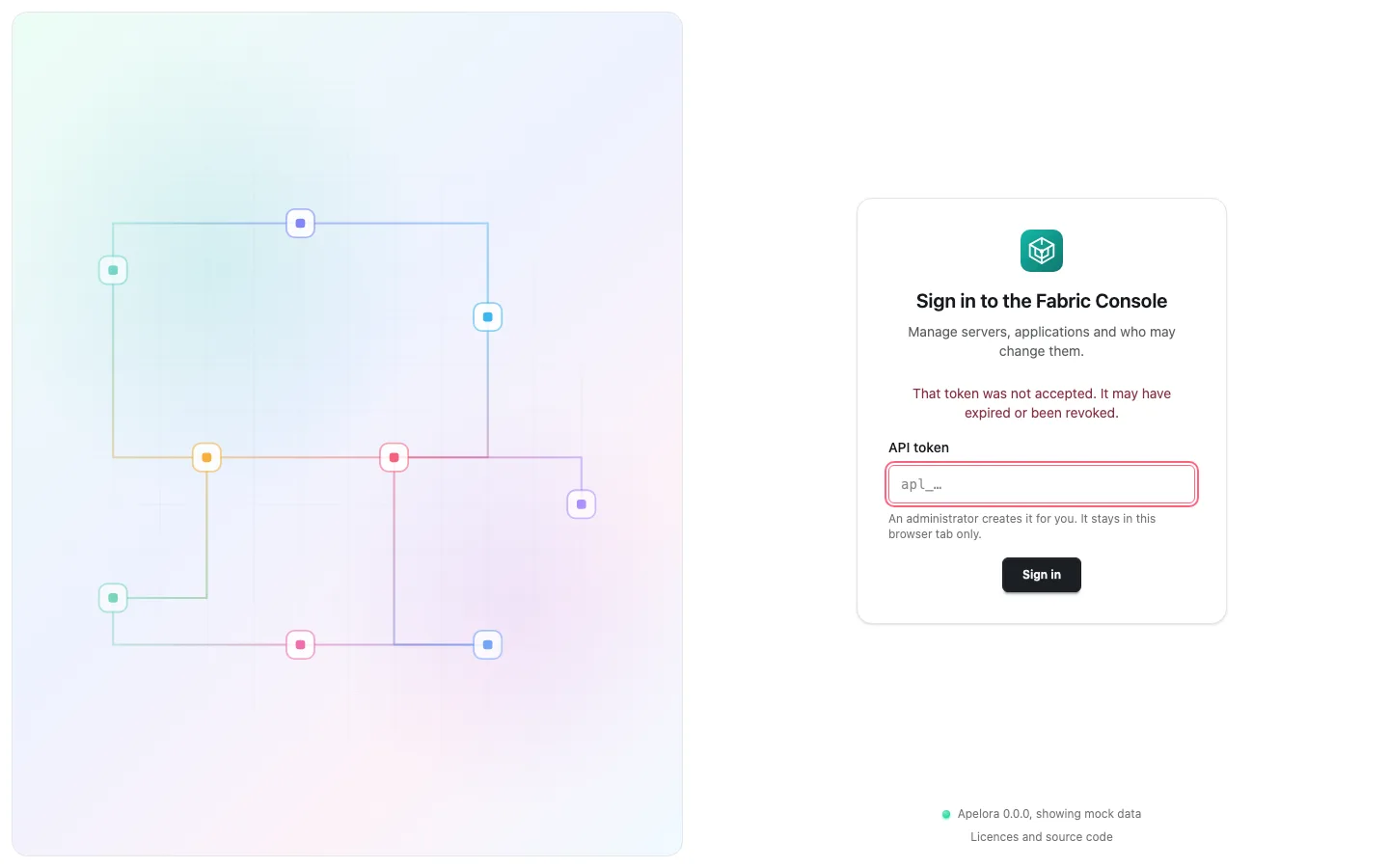
A token that was mistyped, revoked or expired is refused with this message.
3. Signing in with your organisation's identity provider
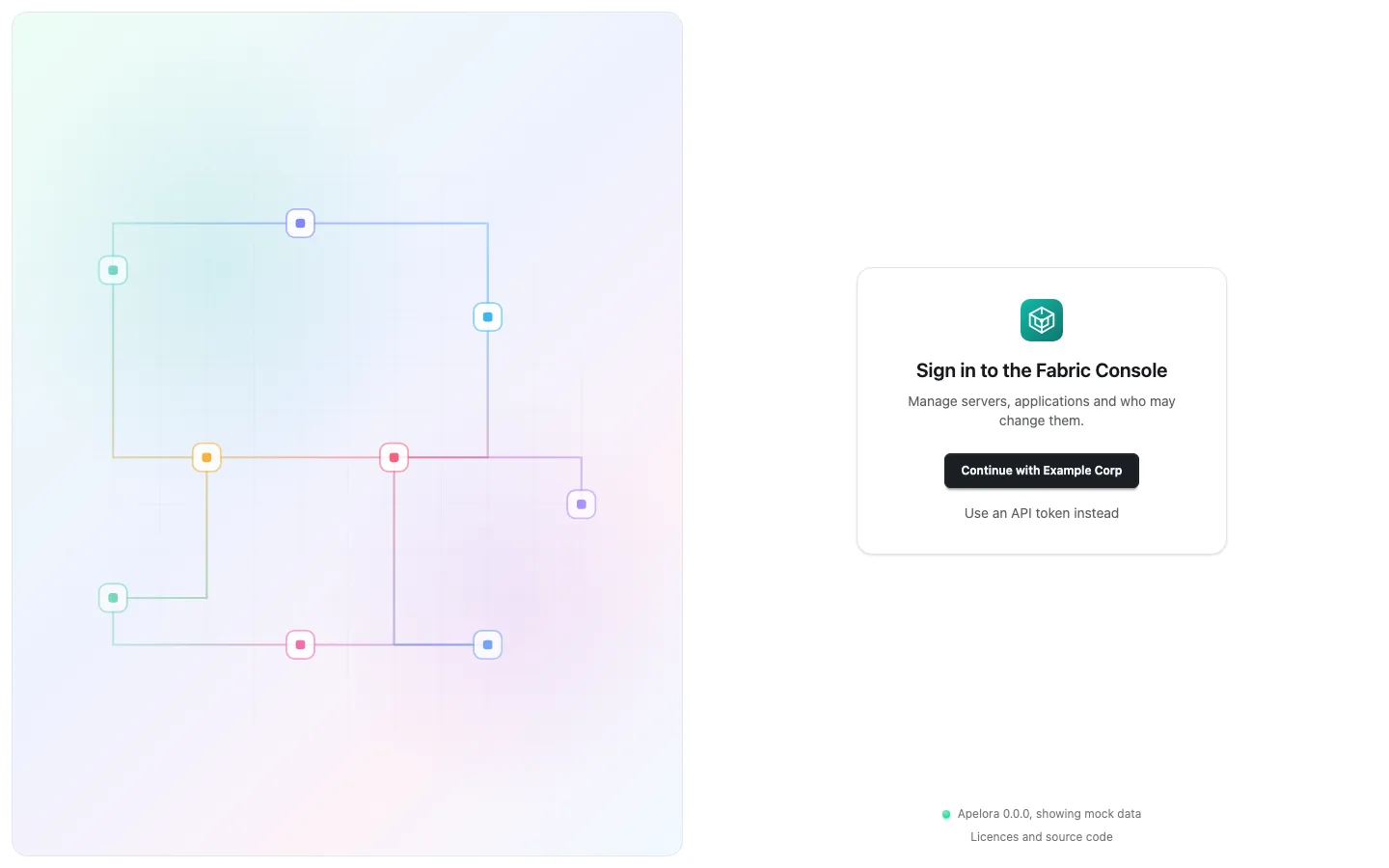
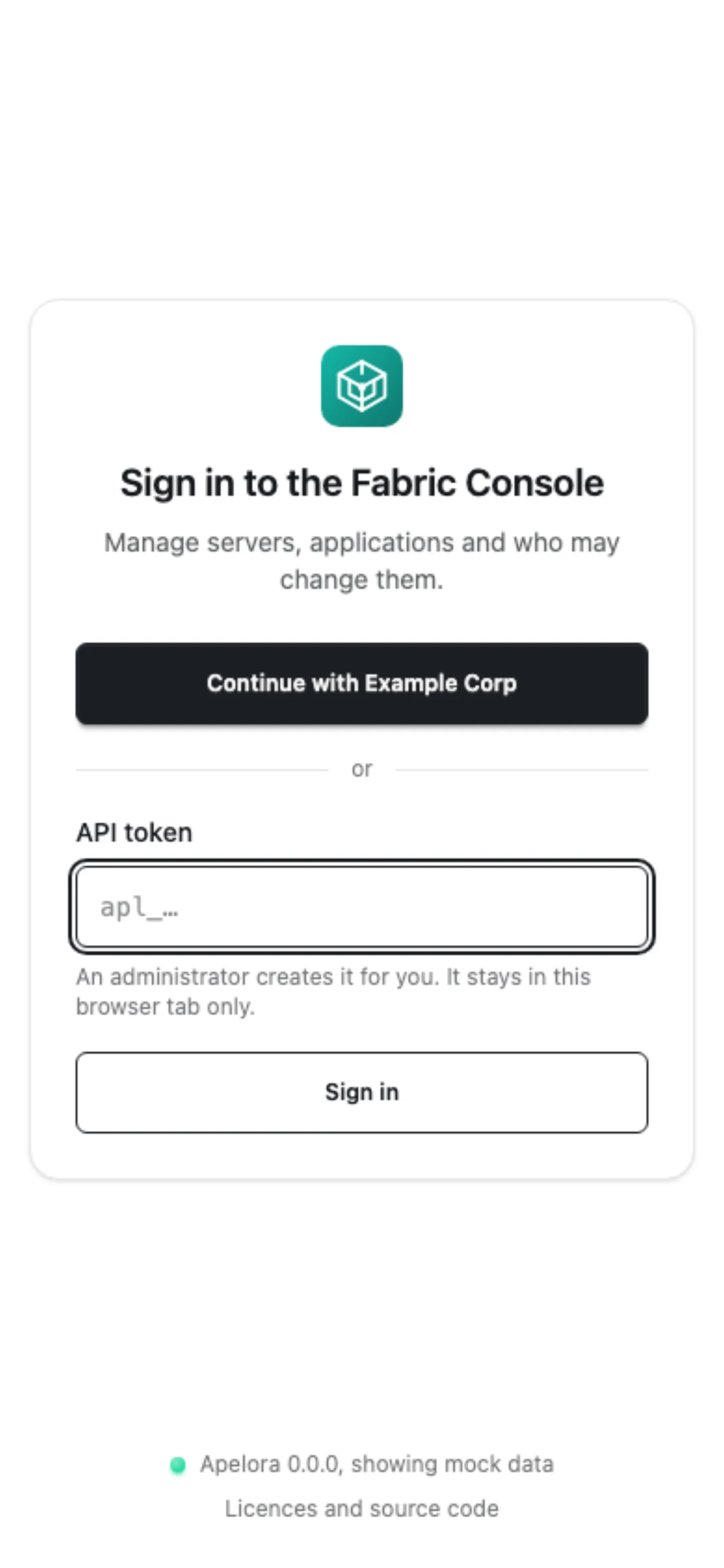
Once an administrator has added your organisation's identity provider (section 4), the sign-in page offers it: with one provider a Continue with Example Corp button, with several a row of buttons named after each provider under Sign in with your organisation. Choose it, sign in at your provider (with multi-factor if it asks), and you come back to the page you were on.
- The browser uses the OpenID Connect authorization code flow with PKCE (Proof Key for Code Exchange),
stateandnonce. Apelora never sees your password. - The access token is kept only for this browser tab, like an API token.
- Your account is created at your first sign-in, without any role. An administrator then gives you a role (Identity & Access → Users → Assign role…, or Project memberships). Until then you see little or nothing.
The Studio
The Studio starts with designs kept in the browser; the header chip says This browser · not connected. To work with the control plane, choose that chip. Connect to a control plane offers the same identity providers as the Console (Continue with …); after signing in at the provider you come back to the Studio page you were on. Or choose Use an access token instead (or, without a provider, paste one straight away) and Connect. The token stays in that tab only; Sign out in the same dialog forgets it. If Apelora refuses the provider's token, the chip's tooltip says why. The designer's deploy dialog also asks for an API token when the control plane refuses the request.
Signing in with a username and password (local accounts)
When an administrator has turned local accounts on, the sign-in page shows Username and Password (first when there is no identity provider, otherwise below the provider button after or). The Studio's Connect to a control plane shows the same fields. A directory uses the same fields; see Directories.
- Your first password. An administrator creates your account and sends you a one-time setup link. Open it, type your new password twice and choose Set password, then Go to sign-in. The link works once and for 24 hours; if it says This setup link does not work, ask for a new one. The token in the link stays in the part of the address after
#, which the browser never sends to a server. - The password rule. 12 to 128 characters, and not your username. Length counts, not symbols: a few unrelated words make a good password.
- Wrong password. The page always says The username or password is incorrect., whether the username exists or not. After five wrong passwords in a row the account is locked for 15 minutes (the message stays the same). One address may try at most 10 times a minute (Too many attempts from this address).
- Your session. Signing in gives you an Apelora session for this browser tab. It ends after one hour without use, eight hours after sign-in, when you sign out, when an administrator resets your password or disables you, or when local accounts are turned off.
- Change password, Sign out. Your name at the top right opens a menu. Change password (local accounts only) asks for the current password and the new one twice; you stay signed in in that tab and are signed out everywhere else. Sign out ends the session on the server, then forgets it in the tab. Anyone can use Sign out; for identity-provider and API-token sign-ins it only forgets the token in the tab.
- Forgot your password? Ask an administrator for a new setup link (Reset password…).
Local accounts have no multi-factor yet, so access policies that require multi-factor refuse them.
4. For administrators: setting up sign-in
You need the permission platform.security.manage (the Platform Super Admin role, or a fabric-admin API token). Open Identity & Access → Sign-in. Changes apply at once, without a restart, and are recorded in the audit history.
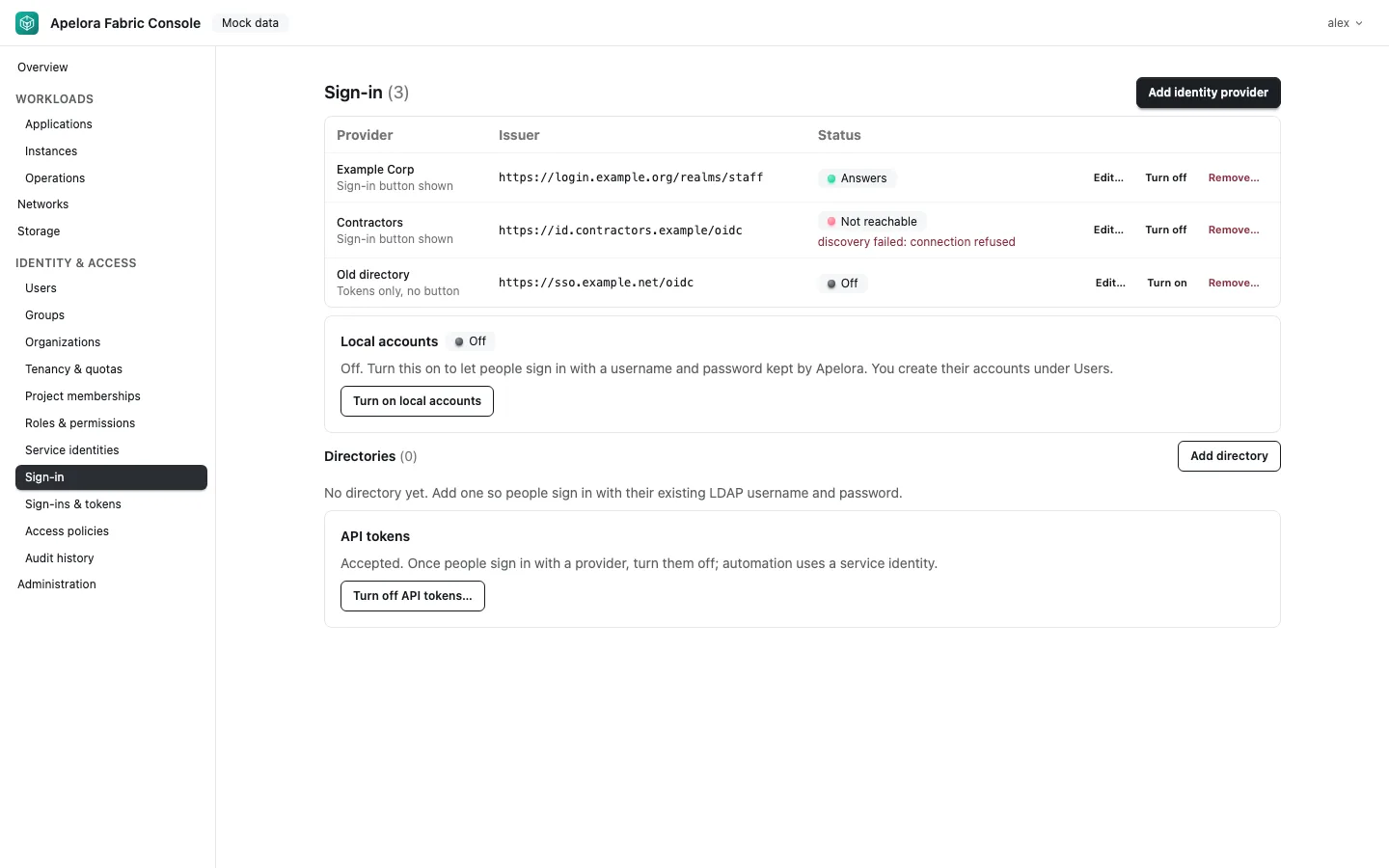
Each provider shows its state: Answers, Not reachable (with the error), or Off. Sign-in button shown means it has a browser client ID; Tokens only, no button means its tokens are accepted (for example from scripts) but the sign-in page shows no button for it. A provider set by environment variables (APELORA_OIDC_*, see .env.example) appears with set by environment variables and cannot be changed here.
Adding an identity provider
Choose Add identity provider. Any OpenID Connect provider works.
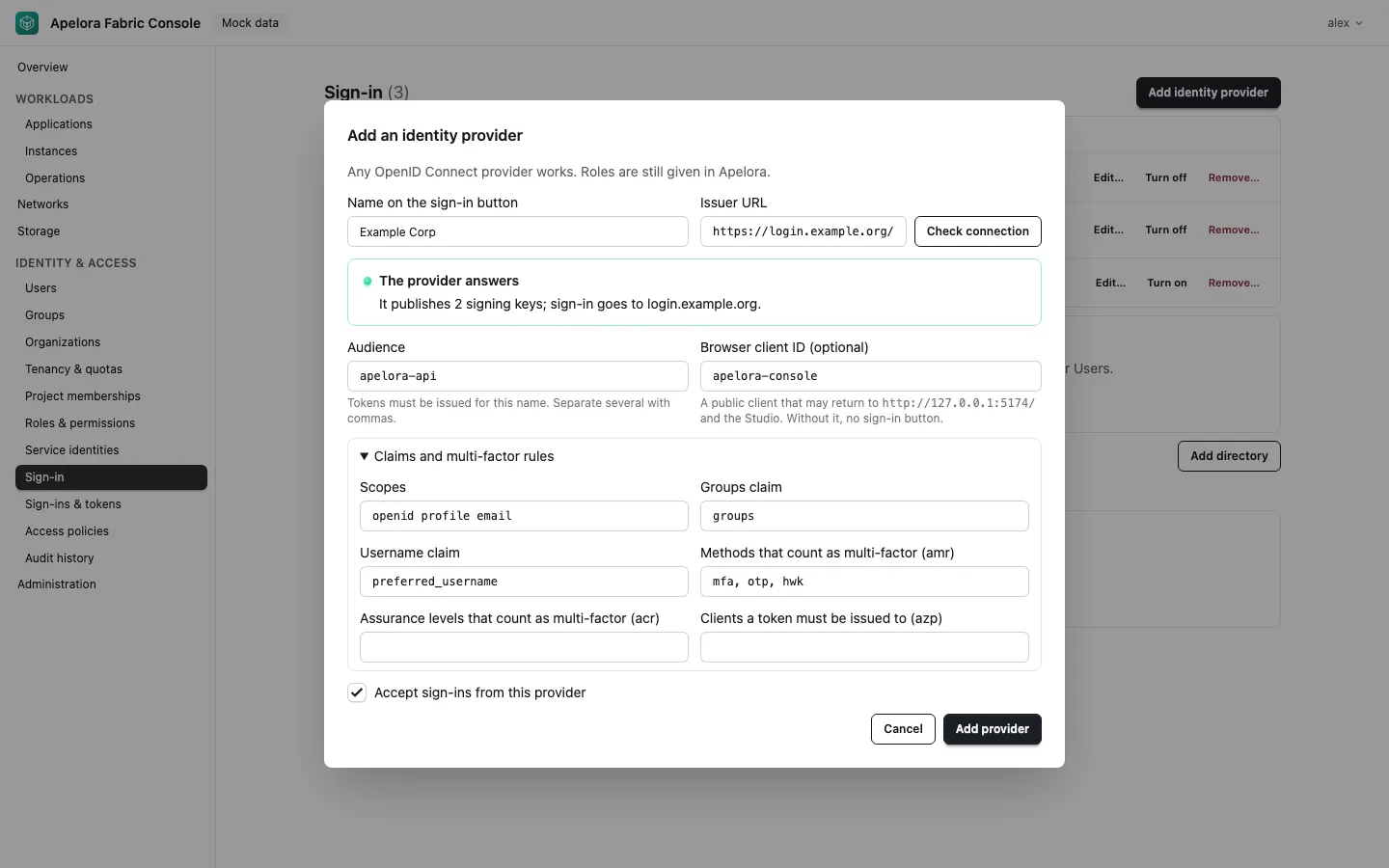
| Field | What to enter |
|---|---|
| Name on the sign-in button | Shown as Continue with … (or the name alone when there are several providers) |
| Issuer URL | The provider's issuer, exactly as in its discovery document (<issuer>/.well-known/openid-configuration). https:// only; plain http:// only when the host is exactly 127.0.0.1, ::1 or localhost. Discovery and key-set requests do not follow redirects |
| Audience | The name tokens must be issued for (aud); several separated by commas |
| Browser client ID (optional) | A public client at the provider (no client secret) that uses authorization code with PKCE. Without it there is no sign-in button |
| Scopes | Default openid profile email |
| Groups claim, Username claim | Where the token carries the person's groups and user name (defaults groups, preferred_username) |
| Methods / assurance levels that count as multi-factor | amr values (default mfa, otp, hwk) and acr values; access policies can require multi-factor |
Clients a token must be issued to (azp) | Optional; refuses tokens issued to other clients |
At the provider, for the browser client:
- Redirect addresses: the Console's address with a trailing slash, as shown under the field, for example
https://console.example.org/(locallyhttp://127.0.0.1:5174/), and the Studio's root address, for examplehttps://studio.example.org/(locallyhttp://127.0.0.1:5173/). - Cross-origin requests: allow the Console's and the Studio's origins. The browser fetches the discovery document and exchanges the code at the token endpoint itself.
- Token lifetime: at most one hour. Apelora refuses longer-lived tokens.
Check connection reads the provider's discovery document and signing keys before you save. The provider answers names the number of keys and where sign-in goes; otherwise the dialog shows the error. Add provider saves it.
Edit… changes a provider, Turn off stops accepting it (and removes its button), Remove… deletes it after you type its name. People's accounts and roles in Apelora stay.
The first administrator who signs in with a provider
- Sign in to the Console with a
fabric-adminAPI token and add the provider. - In a new tab, sign in with the provider. Your account now exists, without roles.
- In the first tab, open Identity & Access → Users, choose Assign role… for that account and give it Platform Super Admin at platform level.
Alternatively, on the server: DATABASE_URL=… cargo run -p apelora-control-plane -- identity bootstrap --issuer <issuer> --subject <sub> [--username <u>] grants Platform Super Admin to the person with that sub claim, only while no platform super admin exists.
Local accounts
For installations without an identity provider (a lab, a small site), or as a second way in. Local accounts are off by default.
- Create the accounts first. Identity & Access → Users → Create local account… (needs
user.manage). Enter a username (2 to 64 lowercase letters, digits, dots, hyphens or underscores; nobody else may already have it), and optionally a display name and e-mail. The dialog shows the setup link once: copy it and send it over a channel you trust, then choose I have sent it. Apelora never shows it again and never learns the password. The account gets no role; give it one with Assign role…. - Turn local accounts on. Identity & Access → Sign-in → Local accounts → Turn on local accounts (needs
platform.security.manage). The section says how many accounts can sign in and how many still wait for setup. People can complete setup while the setting is off, so you can prepare accounts before turning it on. - Reset a password. Users → Reset password… on a local account (type the username to confirm). The password stops working, every session of that person ends, and you get a new setup link (24 hours). You cannot reset your own account; use Change password.
- Disable a person (Users → Disable…): their sessions end at once and the password is refused.
Local accounts are marked Local account in the Users list; their issuer is apelora:local.
Turning local accounts off ends every password session at once. It is refused while it would leave no way in (API tokens off and no provider answers), and for someone signed in with a local account.
Turning API tokens off
Once people sign in with a provider or a local account, turn API tokens off under API tokens → Turn off API tokens…. Every API token stops working at once; automation uses a service identity instead. The server refuses changes that would lock everyone out and changes nothing. Local accounts count as a way in when they are on and at least one account has a password and is not disabled:
| You try to… | The server answers |
|---|---|
| turn API tokens off while signed in with one | you signed in with an API token: sign in with your identity provider first, then turn API tokens off |
| turn API tokens off while no provider answers and no local account can sign in | nothing was changed: no identity provider that answers is enabled and no local account can sign in, so nobody could sign in |
| turn off or remove the last answering provider while API tokens are off and no local account can sign in | nothing was changed: API tokens are off, no other identity provider answers and no local account can sign in, so nobody could sign in |
| turn local accounts off while API tokens are off and no provider answers | nothing was changed: API tokens are off and no identity provider answers, so without local accounts nobody could sign in |
| turn local accounts off while signed in with a local account | you signed in with a local account: sign in another way first, then turn local accounts off |
| turn API tokens on when the environment turned them off | API tokens are turned off by APELORA_LEGACY_TOKENS=disabled; change it there |
APELORA_LEGACY_TOKENS=disabled in the control plane's environment turns API tokens off for good; the Console then shows the setting without a button.
5. Trying it locally
The repository includes a development identity provider (infra/dev/dex.yaml). Its user and password are for development only.
docker compose -f infra/dev/compose.yaml --profile oidc up -d   # PostgreSQL and the identity provider on 127.0.0.1:5556
cargo run -p apelora-control-plane                            # authentication on (database from .cargo/config.toml)
cargo run -p apelora-control-plane -- token create --name me --role fabric-admin
npm run dev:console- Open http://127.0.0.1:5174 (not
localhost: the provider only knows that address) and sign in with the token. - Identity & Access → Sign-in → Add identity provider: issuer
http://127.0.0.1:5556/dex, audienceapelora-console, browser client IDapelora-console. Check connection, then Add provider. - In a new tab, open the Console, choose Continue with … and sign in as
dev@apelora.testwith passwordapelora-dev-only. - Give that account a role from the first tab (section 4).
Stop it with docker compose -f infra/dev/compose.yaml --profile oidc down.
6. Troubleshooting
Messages on the sign-in page
| Message | Meaning and what to do |
|---|---|
| That token was not accepted. It may have expired or been revoked. | The API token is wrong, revoked or expired. Ask for a new one |
| Your session ended. Sign in again. | The token you were using stopped working (expired, revoked, or API tokens were turned off) |
| You signed in, but Apelora did not accept the identity provider's token: … | The provider signed you in, but the control plane refused its token. The reason follows (below) |
| … the token lives longer than Apelora accepts | The provider issues tokens valid for more than one hour. Shorten the token lifetime at the provider |
| … the token has expired / is not valid yet | Usually clock drift between the provider and the control plane |
| … the token is not meant for this API | The token's audience is not in the provider's Audience field |
| … the token was issued to a client that is not allowed | The token's azp is not in Clients a token must be issued to |
| … no identity provider set up here issues tokens for … | The token's issuer differs from every enabled provider's Issuer URL (check trailing slashes and paths) |
| … this account has been disabled | An administrator disabled your account in Identity & Access → Users |
| … the identity provider … cannot be reached: … | The control plane cannot read that provider's signing keys; see Not reachable below |
| This sign-in was not started in this tab. Sign in again. | The provider sent the browser back to a tab that did not start the sign-in (or the tab's storage was cleared). Start again from the button |
| The identity provider did not sign you in: … | The provider reported an error, for example you cancelled |
| The identity provider did not answer (…) / names a different issuer than this control plane expects | The browser could not read the provider's discovery document, or it names another issuer; check the issuer URL and cross-origin settings |
| No way to sign in is turned on for this control plane. | No provider has a browser client ID and API tokens are off. An administrator must fix it on the server |
| The username or password is incorrect. | Wrong username or password, the account is locked for 15 minutes after five failures, it is disabled, or its setup link was not used yet. The page does not say which; an administrator sees the reason in the audit history (auth.password.failed) |
| Too many attempts from this address. Try again in … seconds. | More than 10 password attempts a minute came from your address (behind a shared proxy, everyone shares it) |
| This setup link does not work | The setup link was used, is older than 24 hours, or was replaced by a reset. Ask an administrator for a new one |
| You signed out. | You chose Sign out. Sign in again to continue |
A provider shows Not reachable
The control plane could not read the provider's discovery document or keys; its tokens are refused until it answers. The error is shown in the list, and the control plane logs identity provider not reachable: its tokens are refused until it answers (retried every minute). It retries every minute and logs identity provider accepted for sign-in once it answers. Check the issuer URL, DNS, TLS and firewalls between the control plane and the provider.
Server log: credential refused
Every refused token is logged at warn level as credential refused, never with the token itself. The fields:
| Field | Content |
|---|---|
method, path | The request that was refused |
credential | identity-provider token, Apelora session, service token, API token or unrecognised |
issuer | The token's issuer for identity-provider tokens, otherwise - |
code, reason | The error code (for example invalid_token) and the reason in words, the same as on the sign-in page |
Refusals are not written to the audit history (anyone could fill it with bad requests). A disabled account that signs in is recorded there as auth.refused. Password sign-ins are the exception, because they are limited per address: every attempt is audited (auth.password.succeeded, auth.password.failed with the username, the reason unknown, wrong, locked or disabled, and the client address; never the password), as are lockouts (auth.locked), setup (auth.setup.completed), password changes (auth.password.changed), sign-outs (auth.signed_out), and the administrator actions identity.local_account.created, identity.local_account.reset and identity.local_accounts.enabled|disabled. The server log has password sign-in refused with the username and reason, and session issued with the person's id. For more detail, run the control plane with RUST_LOG=apelora_control_plane=debug,info.
7. Directories (LDAP over TLS)
People can also sign in with the username and password of an existing directory that speaks LDAP (Lightweight Directory Access Protocol). Apelora connects over TLS and signs in to the directory as that person: it binds with their name and password. It reads their entry and groups with that same sign-in, then forgets the password. No directory service account or password is stored. Design: ADR 0007, design note.
The Fabric Console and the Studio offer each enabled directory on the sign-in form, with the same username and password fields as a local account. The same per-address limit as a local password applies.
Adding a directory
Identity & Access → Sign-in → Directories → Add directory (needs platform.security.manage; every change is audited as identity.directory.saved or identity.directory.deleted).
| Field | What to enter |
|---|---|
| Name on the sign-in form | What people choose, e.g. Staff directory |
| Address | ldaps://host[:port] (port 636 by default), or ldap://host[:port] with Use StartTLS. Plain LDAP is refused when you save. Use the host name the server's certificate names |
| Sign-in name | How the person's sign-in name is built, with {username} where their username goes: a DN such as uid={username},ou=people,dc=example,dc=org, or a principal name such as {username}@example.org |
| Certificate authority (PEM, optional) | The authority that signed the directory's certificate. Empty: the control plane's system trust store. The certificate and host name are always checked; there is no way to turn that off |
| Finding people and groups (advanced) | Search people under (base DN) and User filter (e.g. (uid={username})): needed for a principal-name sign-in, optional for a DN. Attributes for the stable ID (default entryUUID; objectGUID is read as hex), username (uid), email (mail) and display name (cn). Groups from an attribute of the person (e.g. memberOf), from a search (Search groups under with Group filter, default (member={dn})), or both; Group name attribute (default cn) |
| Offer this directory on the sign-in page | Off: kept, but nobody can sign in with it |
Test sign-in in the same dialog signs in as one person with a username and password you type there. They are used once and never saved. The result shows the entry, the stable ID, the groups the directory reports and the Apelora groups they match, or the precise reason it failed.
What the person types is escaped before it reaches the directory (RFC 4514 inside a DN, RFC 4515 inside a filter), so *, )(, , or = in a username cannot change what is searched or where the bind goes. For a principal-name sign-in, a username with @, \ or / is refused (type it without a domain). An empty password is refused before anything is sent, because an LDAP bind with an empty password is an anonymous bind.
Groups and roles. A directory group becomes an Apelora group's members when you tell the Apelora group where its members come from: under Identity & Access → Groups, create a group, choose the directory under Members come from, and enter the directory group's full DN (cn=dev-admins,ou=groups,dc=example,dc=org), then assign roles to that group as usual. The whole DN counts, so a group of the same name in another part of the directory, or in another directory or identity provider, is a different group. Capitals and spaces after commas do not matter. Test sign-in on a saved directory lists each group's DN as Apelora reads it and the Apelora groups it matches.
Groups mapped before 2026-10-25 were mapped by name only and are shown with Needs a source: nobody is a member through them until a platform administrator chooses Set source… (the identity provider or directory, and, for a directory, the full DN). When exactly one identity provider and nothing else was configured, the control plane did this by itself at its first start after the update.
Who the person is in Apelora. The directory's address is the account's issuer and the entry's stable ID its subject: the same person keeps one account across renames in the directory. Changing a directory's address therefore creates new accounts on the next sign-in.
The directory's access rules must let a person read their own entry and, when groups are searched, the groups (the person's own sign-in does both).
Example: a POSIX-style tree
People under ou=people, groups as groupOfNames under ou=groups:
| Field | Value |
|---|---|
| Address | ldaps://ldap.example.org |
| Sign-in name | uid={username},ou=people,dc=example,dc=org |
| Group attribute of the person | memberOf (if the server maintains it), or leave empty and set Search groups under ou=groups,dc=example,dc=org with Group filter (member={dn}) |
| Stable ID attribute | entryUUID |
For posixGroup groups that list usernames, use Group filter (memberUid={username}).
Example: a directory with user principal names
People sign in as name@example.org; entries carry objectGUID and memberOf:
| Field | Value |
|---|---|
| Address | ldaps://dc1.example.org (or ldap://dc1.example.org with StartTLS) |
| Sign-in name | {username}@example.org |
| Search people under | dc=example,dc=org |
| User filter | (userPrincipalName={username}@example.org) |
| Stable ID attribute | objectGUID |
| Username attribute | sAMAccountName |
| Display name attribute | displayName |
| Group attribute of the person | memberOf |
Trying it locally
bash infra/dev/directory/make-certs.sh       # once: a throwaway CA and server certificate (git-ignored)
docker compose -f infra/dev/compose.yaml --profile directory up -d --build directory
Then add a directory with address ldaps://localhost:1636, the CA from infra/dev/directory/certs/ca.pem, and sign-in name uid={username},ou=people,dc=apelora,dc=test. People (infra/dev/directory/seed.ldif; password apelora-dev-only for all, development only): ada (dev-admins, dev-operators), oscar (dev-operators), vic (no groups), sam+ops (dev-operators). Groups can come from memberOf or from a search under ou=groups,dc=apelora,dc=test. StartTLS is on ldap://localhost:1389. ldaps://127.0.0.1:1636 shows a host-name mismatch on purpose. Stop it with docker compose -f infra/dev/compose.yaml --profile directory down.
Troubleshooting directories
| Shown in the Console | Meaning and what to do |
|---|---|
| Nothing answers at this address | Wrong host or port, a firewall, or the server is down |
| The directory did not answer in time | Nothing answered within the deadline (10 s for a sign-in, 5 s for the status in the list) |
| The certificate is not trusted | Paste the certificate authority that signed the directory's certificate (PEM) |
| The certificate is for another host name | Use the host name in the certificate in the address (not an IP address, unless the certificate names it) |
| The directory refused StartTLS | The server does not offer StartTLS on that port: use ldaps:// |
| The TLS connection failed | For example ldaps:// pointed at a plain LDAP port, or no common TLS version (TLS 1.2 or later is required) |
| Wrong username or password (test sign-in) | The directory refused the bind. Check the sign-in name template |
| Signed in, but the person's entry was not found | The bind worked but the entry could not be read: check the base DN and user filter, and that the directory lets a person read their own entry |
| The user filter found more than one person | Make the filter match exactly one entry |
| A search in the directory failed | Often: the person may not read the groups. Check the directory's access rules |
People signing in see The username or password is incorrect. for a refused bind (the same for every way it can be wrong) and The directory … cannot be reached right now (503 directory_unreachable) when the directory cannot be used; other ways in keep working. Each failed directory sign-in is audited as auth.directory.failed with the username and a reason (wrong, unreachable, entry_unreadable, disabled), never the password; a directory that cannot be used is also logged at warn with the precise reason.
Before you rely on it
- Sign-in with an identity provider and with a directory has been tried with the development ones in this repository. It has not yet been tried with a production provider or directory: try yours with a test account first.
- The example for a directory with user principal names is written from documentation and has not been tried against such a directory.
This page is a copy of docs/guides/signing-in.md in the repository, which is the source of truth. Suggest a change.